

Test Upload Guidelines
Test Upload
-
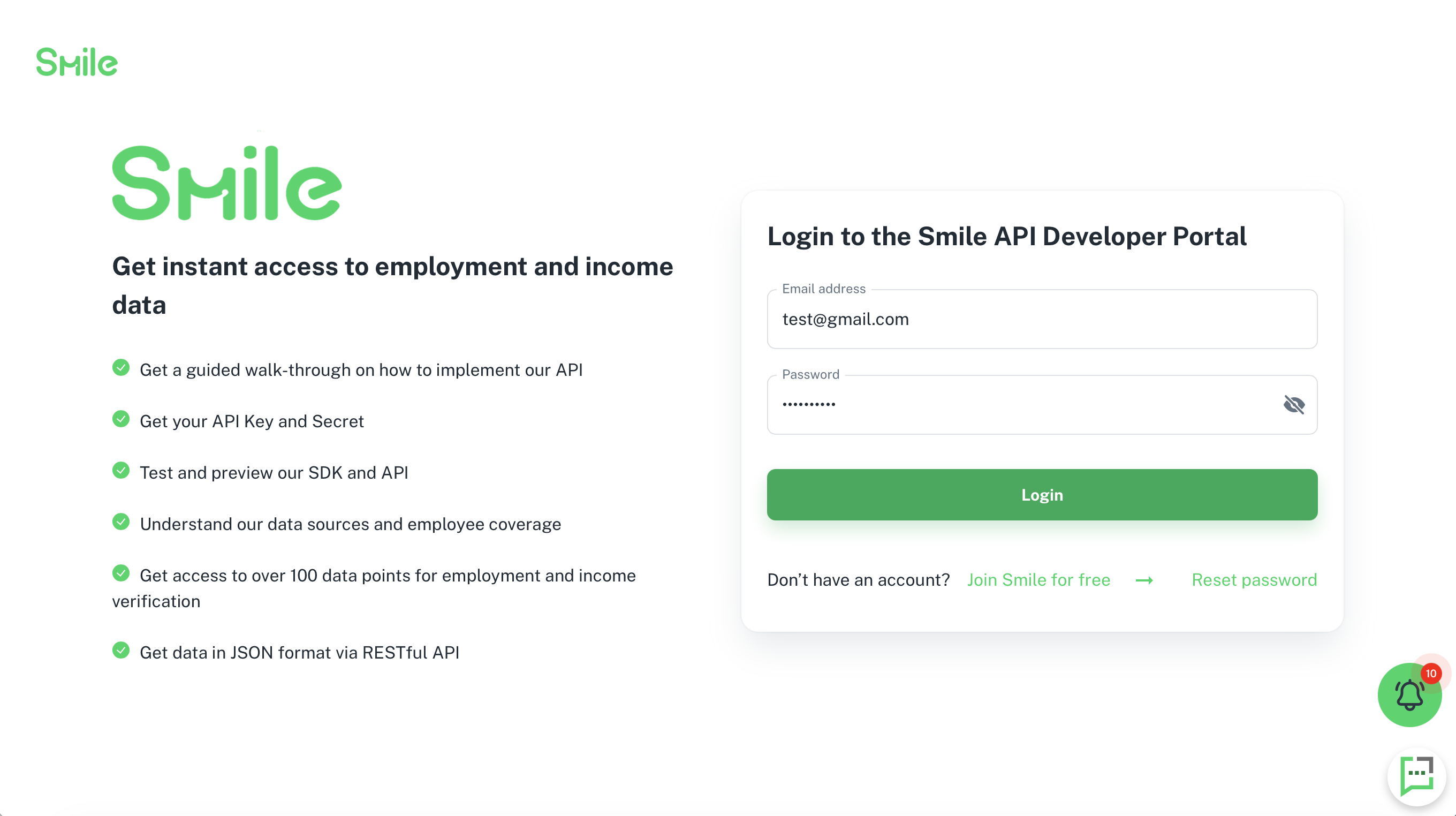
Login / Register account here under Smile Developer Portal.
-
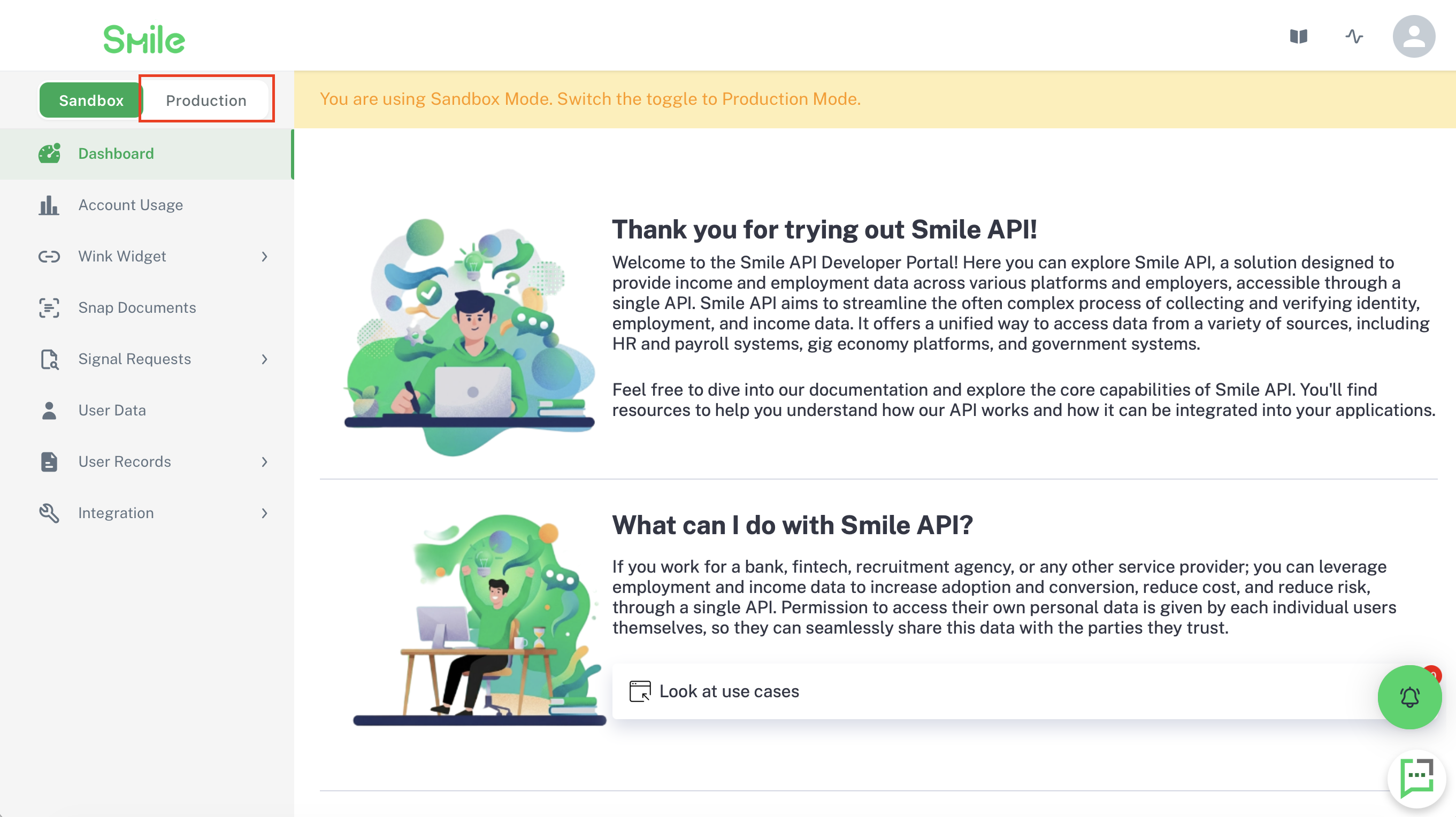
After you've logged in to Smile Developer Portal, switch to Production mode on the top left corner. If Production mode is disabled on your side, please reach out to any Smile staff for assistance.
-
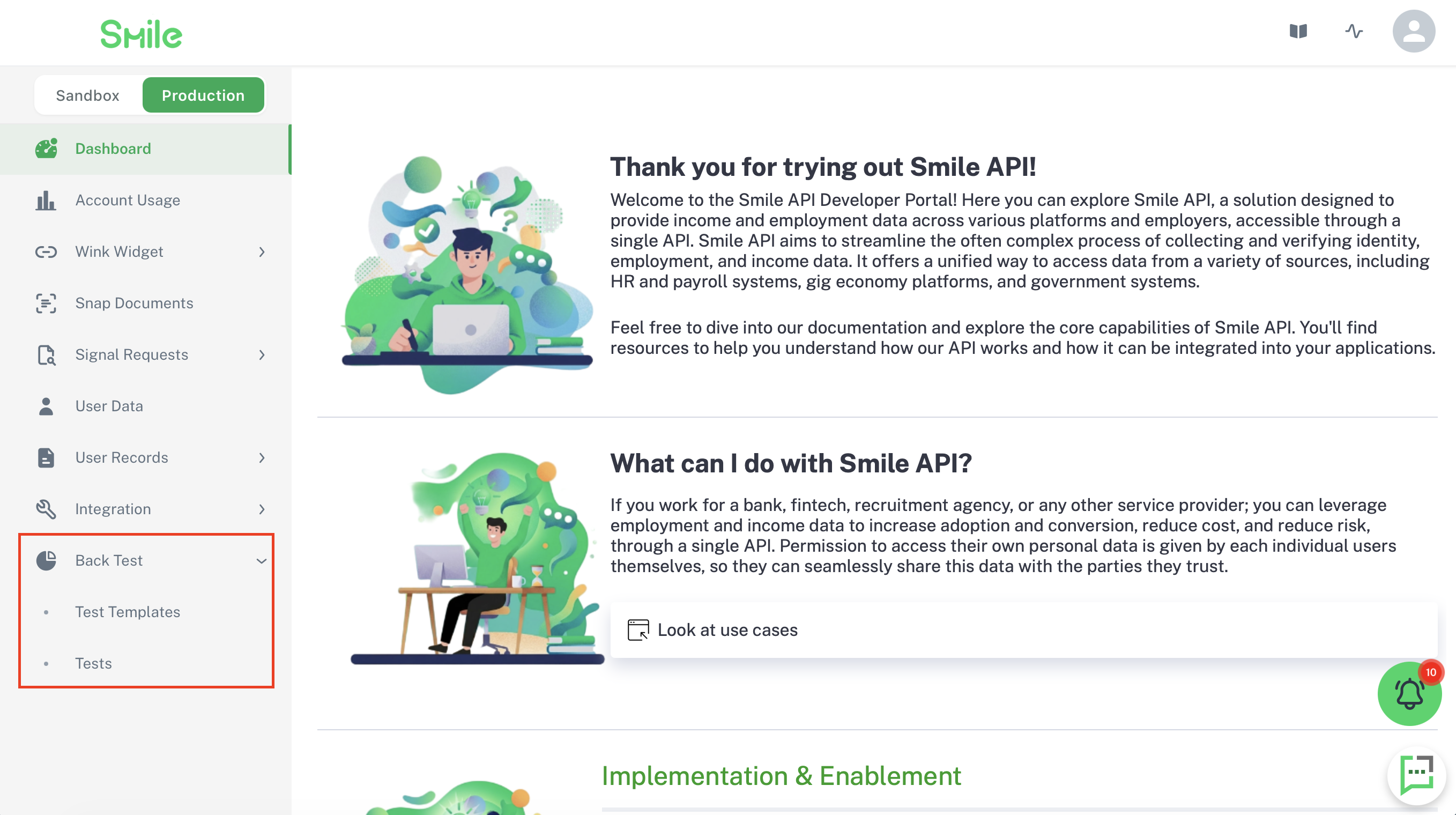
The "Back Test" section will pop up on the bottom left once you've switched to Production mode. Click on the test template.
-
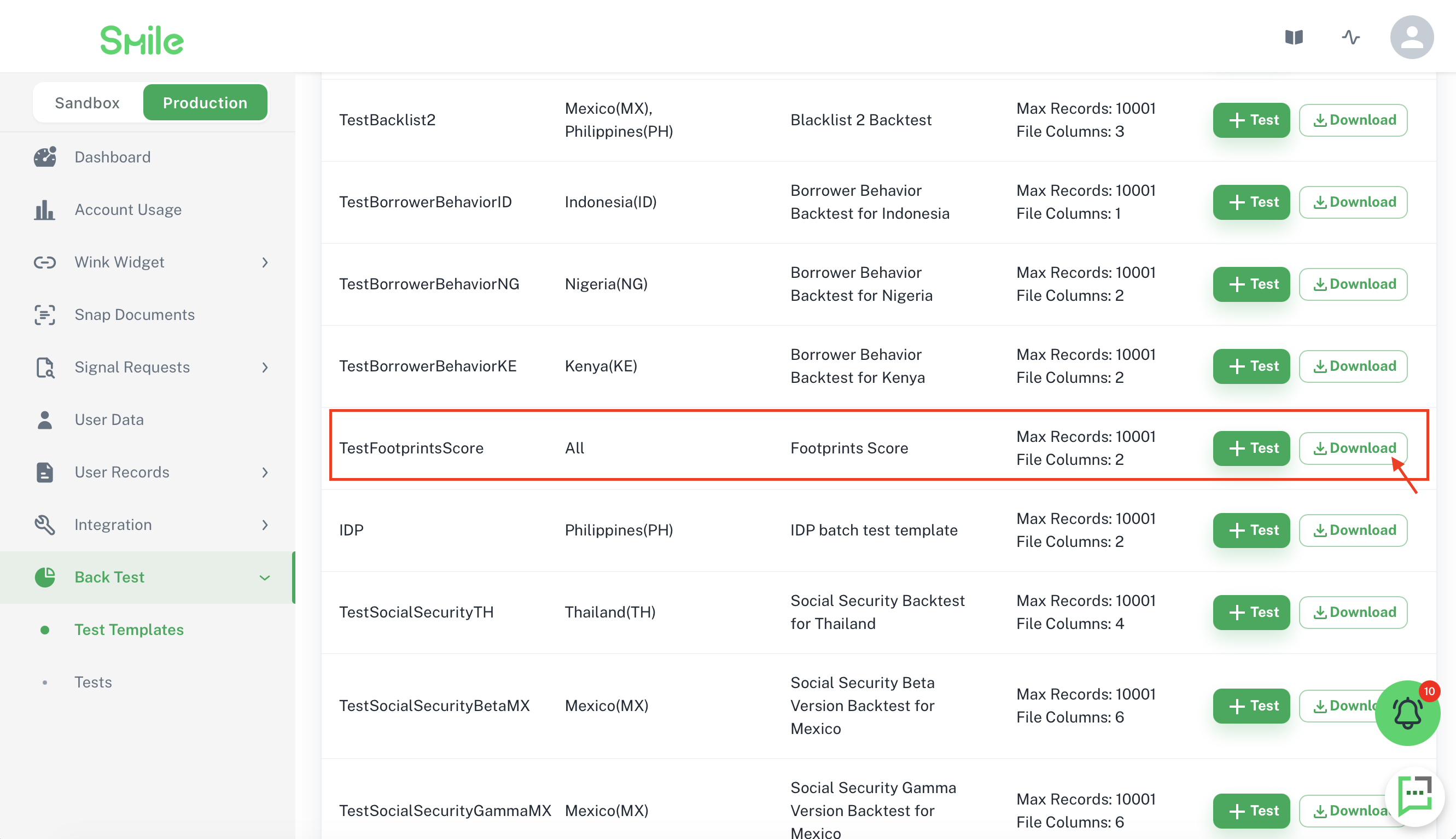
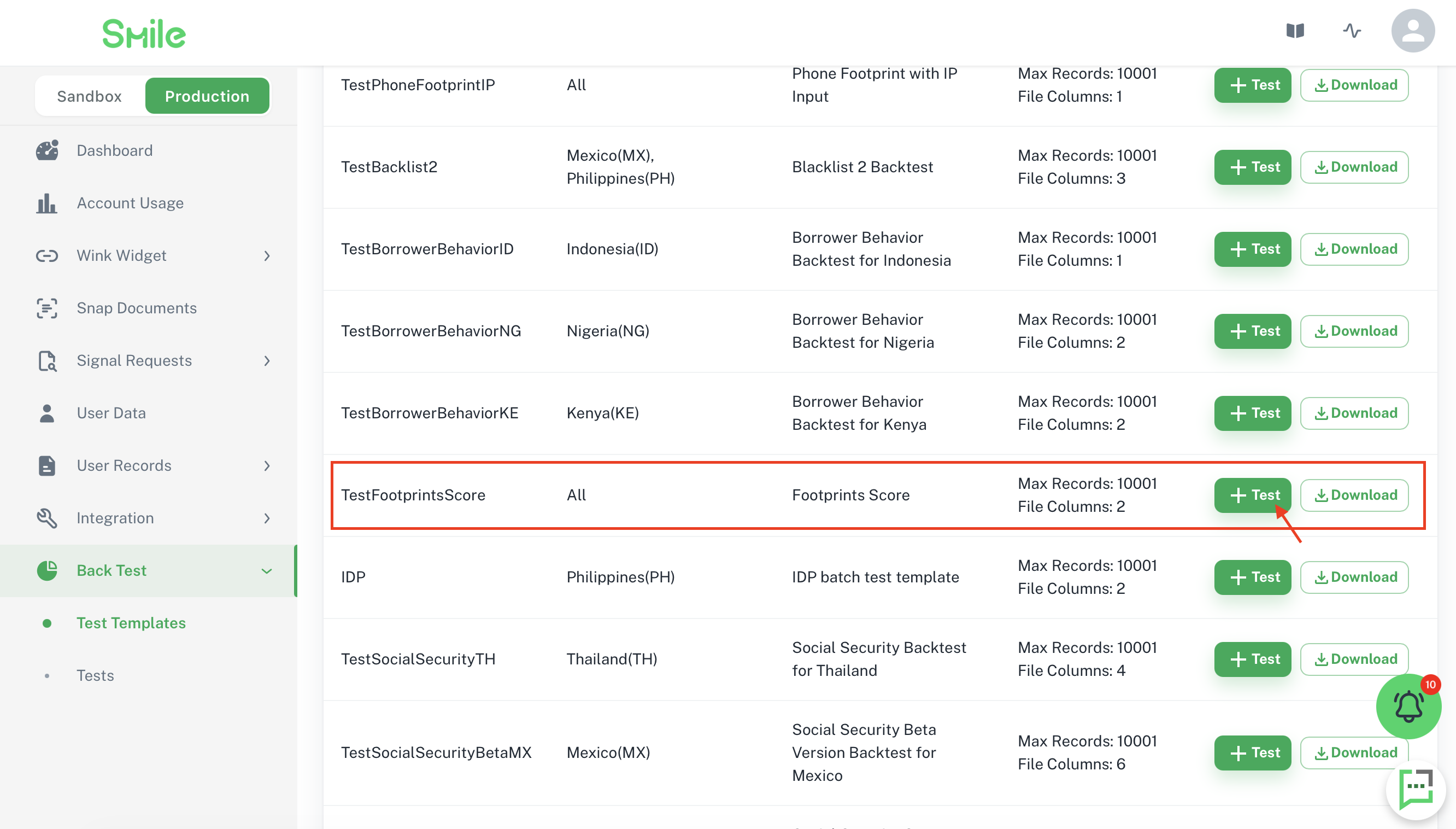
Choose a test template that you would like to test and download it (in our case it would be "TestFootprintScore").
-
Populate the template and click on the "+ Test" button to proceed on uploading the test file.
-
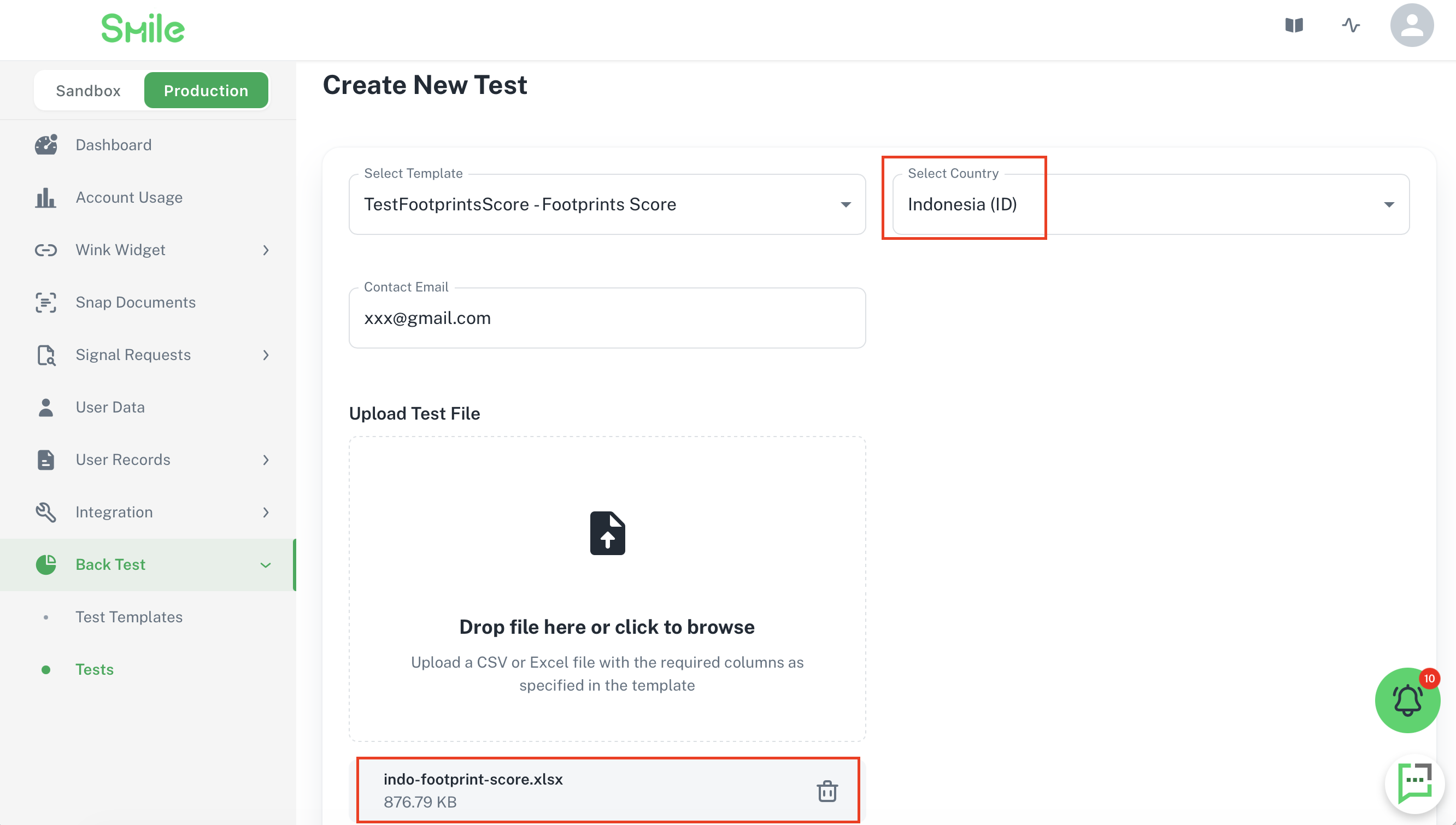
Select the country you are testing for and upload the test file.
-
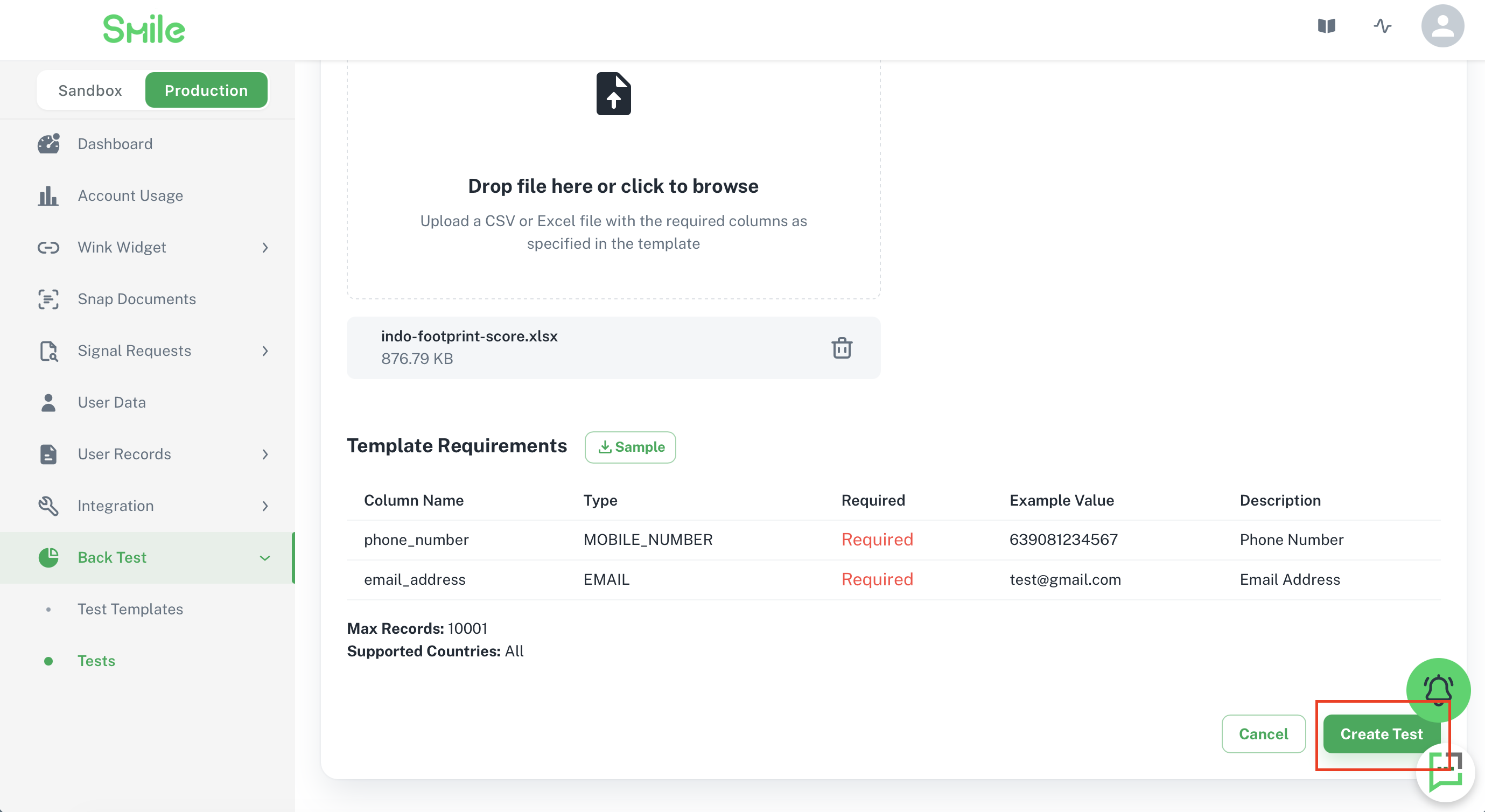
Click on "Create Test" to upload the test file. We will notify you as soon as your test results are ready.
-
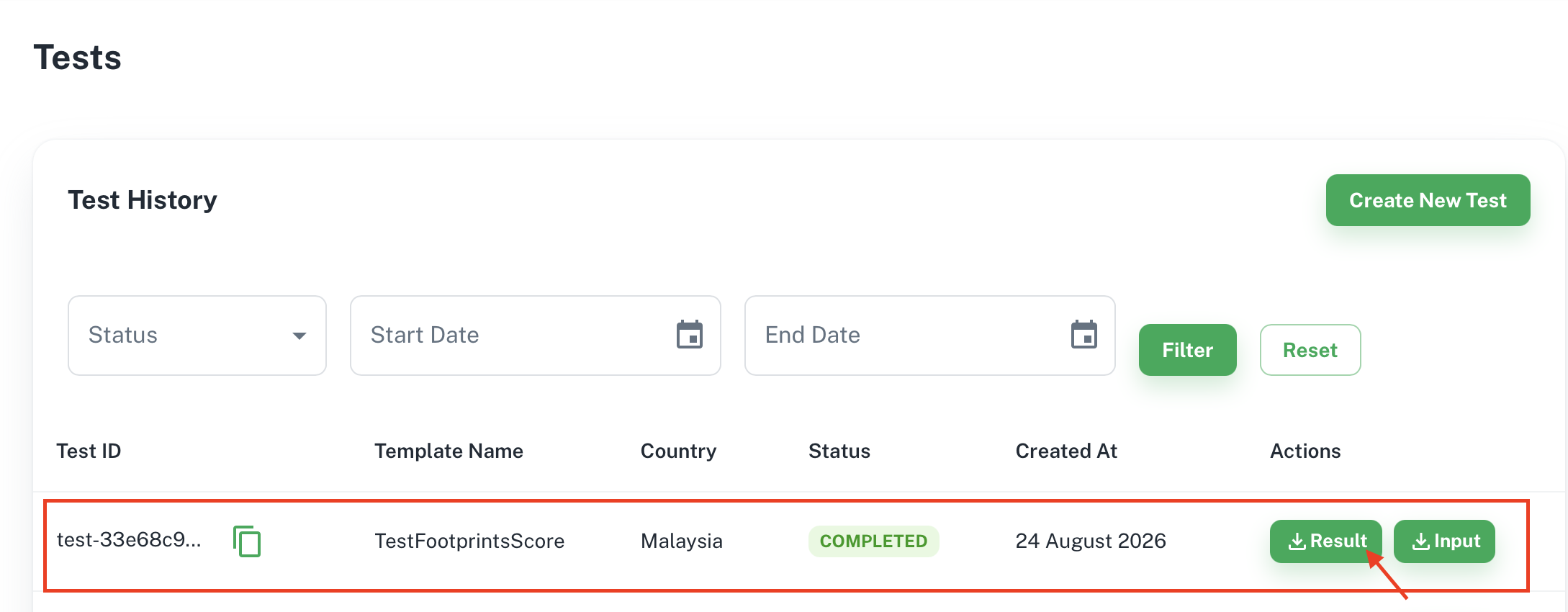
You can download your test results in "Tests" by clicking the "Results" button.
Post Test Evaluation Call
We will be in touch with you to guide you through the process of evaluating the data.
During the process of a POC, we will support you with insights and tips to improve the score fit even further by emerging it with performance data if this is required on your end.
Updated 2 months ago